Roles Management
Comprehensive roles management in BigPanda allows you to easily dictate access to resources. Permissions are separated by functional area and resource type, with the ability to create roles based on environments in BigPanda.
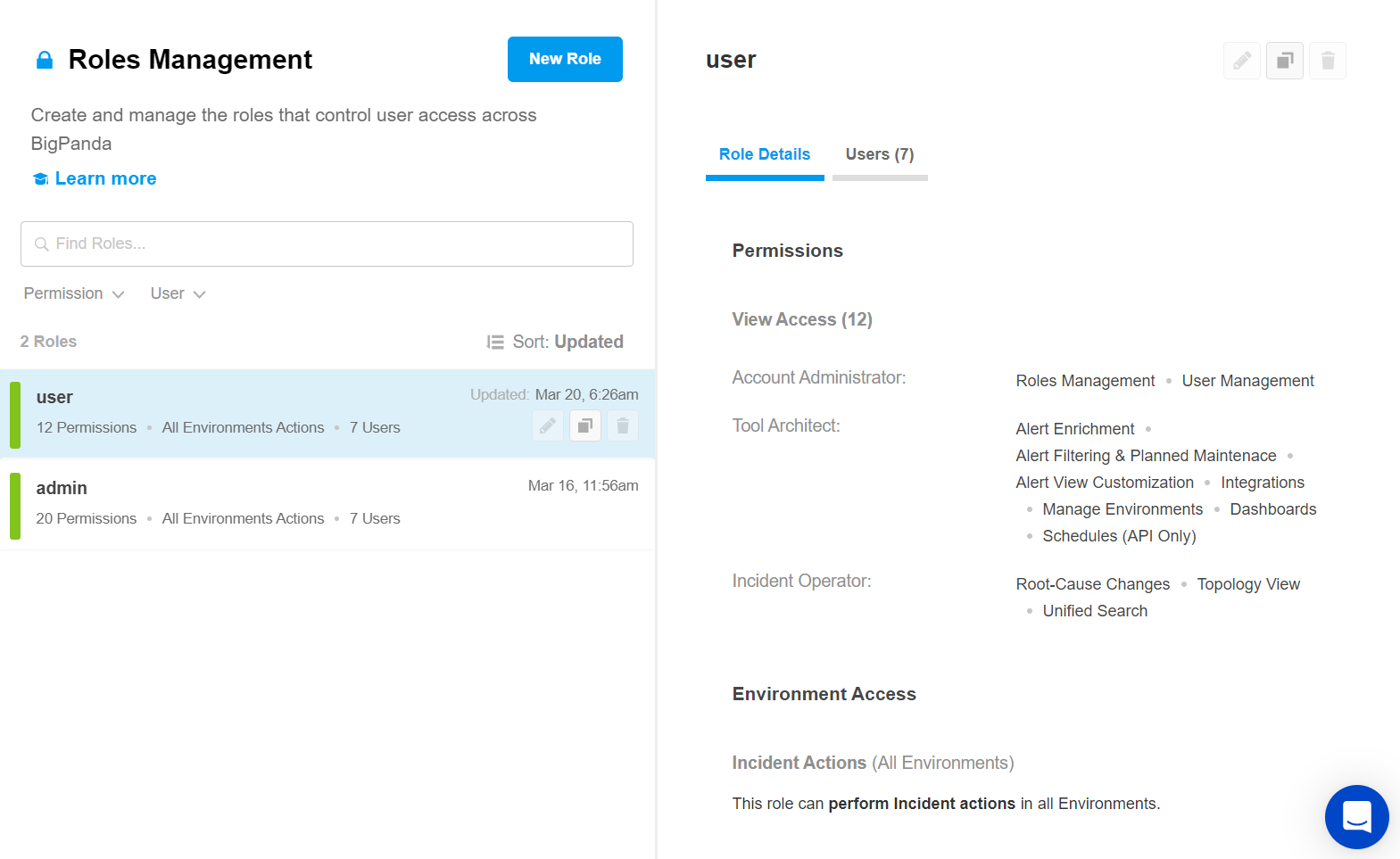
Roles Management
AI Detection and Response Roles
Roles are configured in ADR at Settings > Roles Management.
Key Features
Create and customize roles to restrict the availability of your organization's sensitive content.
Adjust access to areas and functionality of BigPanda on a per-user basis.
Organizations using Single Sign-On with Just-in-Time Provisioning can automatically assign roles to user accounts the first time they sign in to BigPanda.
Protect your organization's resources by configuring access to specific environments.
The separation of duties provided by Role-Based Access Control (RBAC) localizes areas of access, providing very clear parameters for each user's responsibilities.
Relevant Permissions
Only users with Full access can grant role permissions for a newly created resource. Add Roles Management with Full Access for access to these permissions.
Permission Name | Description |
|---|---|
Roles Management | View, add, edit, and delete BigPanda Roles. |
Access Levels
A user account may have one or more roles, and each role may have one or more permissions associated with it. The same role can be assigned to any number of accounts.
BigPanda provides three default roles: Admin, User, and Viewer (Read Only).
The Admin role includes full access to all areas of BigPanda, including the ability to interact with and make changes to resources. The role includes view only access to settings screens, and full access to take action on incidents in all environments. The Viewer (Read Only) role provides read-only access to all screens.
These default roles can be duplicated and then customized to adjust the permissions or level of access granted to your organization's BigPanda accounts or service keys.
Each permission in BigPanda has two options that dictate the level of access. The two access levels provided by BigPanda permissions are:
View - Read-only access. The resource cannot be interacted with or edited.
Full Access - All actions related to the resource can be performed.
Environment permissions can also be configured to control user access and actions in each environment. See Environment Permissions for more information.
For more information about Permission types in BigPanda, see Roles and Resource Permissions.
Create a Role
BigPanda Comprehensive Roles Management allows you to create custom roles that have access to specific sections and actions within BigPanda.
Build roles within your organization using the permissions specific to each individual BigPanda resource.
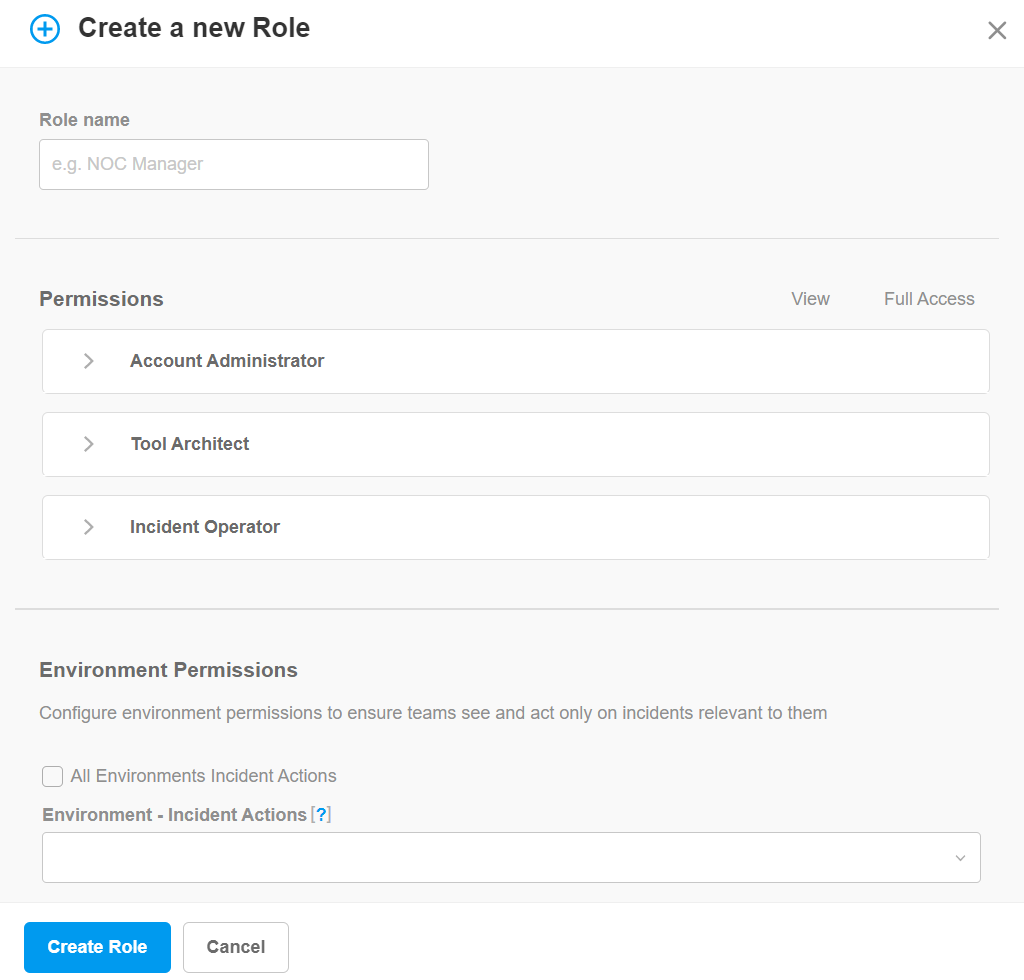 |
Create New Role
To create a new role:
Navigate to Settings > Roles Management.
Click New Role.
In the Create New Role window, enter a descriptive Role name.
Add permissions to the role using the checkboxes. Permissions are divided by functional area in BigPanda. You can select the View or Full Access option for each permission. See Roles and Resource Permissions for more information about each role.
In the Environment Permissions section, select which environments the role has access to from the Edit environment settings, Incident actions, and/or View incidents permission drop-down. Each role must have access to at least one environment to use BigPanda. See Environment Permissions for more information.
Click Create Role to save the role.
Manage Users
Adding a user to a role provides them with access to all of the permissions configured in the role. Users can be added or removed to a role from within the role details pane.
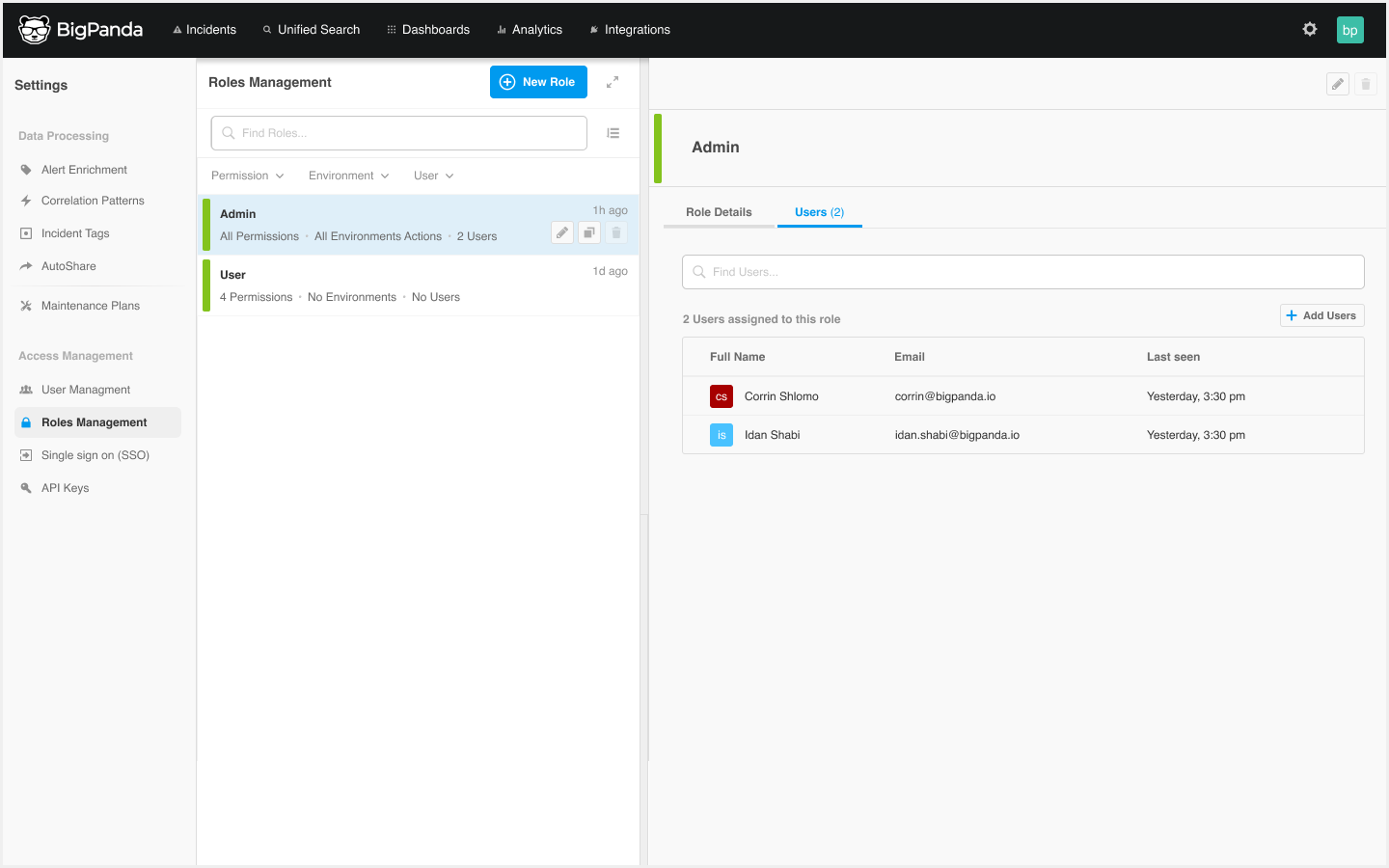 |
Add a User to a Role
Add a User
To add a user to a role:
Select the role you wish to add a user to.
In the role details pane, select the Users column.
Click the Add Users button.
In the Add Users to Role window, select users from the drop down menu, or type the name(s) of users you would like to add.
Click Add Users to save.
Remove a User
To remove a user from a role:
Select the role you wish to remove a user from.
In the role details pane, select the Users column.
In the list of users, find the user you’d like to remove.
Click the Remove button.
Manage roles
Roles can be viewed and managed in BigPanda at Settings > Roles Management. Click any role in the list to view details such as permissions and users associated with the role in the right pane.
You can search the list of roles by entering a term in the field above the list. Or, filter the list by Permission, Environment, or User.
Within the Roles Management screen, you can edit, duplicate, temporarily deactivate, or permanently delete roles.
To manage roles:
Navigate to Settings > Roles Management. A list of existing roles appears.
Select the role you wish to edit, duplicate, or delete.
Use any of the following options to modify the role:
Option | Description |
|---|---|
Edit | a. Click Edit Role. b. In the Edit Role window, modify the role according to your needs. c. Click Update Role to save. |
Duplicate | a. Click the Duplicate button. b. In the Duplicate Role window, adjust the role settings and permissions as needed. c. Click Create Role to save. |
Delete | a. Click the Trash icon. b. Click Delete to confirm, or Cancel to return to the previous page. |
Roles and Resource Permissions
Access to resources can be limited or expanded using the View and Full Access permission access levels. See Access Levels for more information.
Permissions in BigPanda are sorted into three categories based on common BigPanda user types:
Account Administrator
Permission Name | resource_type | Access Level |
|---|---|---|
API Keys | apikeys | View, edit, and create API Keys in Settings. |
Audit Logs | audit_logs | View the Audit Log in both Settings and API. |
General Settings | general_settings | View and edit General Settings. |
Roles Management | roles | View, add, edit, and delete Roles in both the UI and Roles API. |
Sharing Quotas | quotas | View and edit Sharing Quota rate limitations in Settings. |
Single Sign-On | sso | View, select, and configure a Single Sign-On provider in Settings. |
Troubleshooting | troubleshooting | View event logs for specific Integrations. |
User Management | users | View, add, edit and delete Users in Settings and the SCIM Users API. |
Tool Architect
Permission Name | resource_type | Access Level |
|---|---|---|
AI Module Configuration | aia_configuration | View and edit AI module features for your organization. |
Alert Correlation | correlations | View, edit, and create new Correlation Patterns in Settings and API. |
Alert Enrichment | enrichments | View and use the Alert Enrichment UI and API. |
Alert Filtering & Planned Maintenance | plans | View, create, edit, and delete Maintenance Plans and Alert Filters in Settings, and use the Plans V1 API. |
Alert View Customization | alert_view | View, create, and edit Alert Views in Settings. |
AutoShare | notifications | View, add, edit, and delete AutoShare Rules in Settings. |
Incident Enrichment | incident-tags-definitions | View, create, and edit Incident Tags in Settings. |
Incident Feed View | incident_view | View, create, edit, or delete Incident Feed Views in Settings. |
Integrations | integrations | View, install, and edit integrations in the Integrations Tab. |
Manage Environments | environments | View, create, edit, and delete Environments in the UI and API, and view the incidents environments contain. See Environment Permissions for more information. |
Mapping Enrichment (API Only) | enrichments-jobs | Use the Mapping Enrichment API. |
Schedules (API Only) | schedules | View and use the Schedules API to define the specific start and end times of Plans configured with the Plans V1 API. |
Unified Analytics | analytics | View, edit, and create new dashboards in the Analytics Tab and assign the Dashboard Designer role. |
Incident Operator
Permission Name | resource_type | Access Level |
|---|---|---|
Dashboards | dashboards | View, customize, and interact with Dashboards. |
Root-Cause Changes | changes | View change details within an incident's Changes Tab and mark changes as Suspect or Match. |
Service Health Dashboard | service_health_dashboard | View and configure the Service Health Dashboard. |
Topology View | topology | View, upload, or edit topology maps via API, and view the Topology Tab in incident details. |
Unified Search | search | Access Unified Search. |
Incident Assistant Chat | incident_assistant | View and interact with the Biggy Agent chat in the Incident Feed and new Incident Assistant console tab. |
Environment Permissions
Environment permissions in BigPanda allow you to manage access to specific environments. To provide access to manage (create, delete, edit) all environments, assign the Environments permission with the Full Access level.
Environment permissions can be assigned during the role creation process. To add specific environment permissions, follow the steps to Create or Edit a role, and scroll to the Environment Permissions section.
Full access permissions
If you assigned the full access Environments permission to a role, a message will appear that says This Role has a permission to manage (create, delete, edit) all environments.
The following permission types are available for environments:
Edit specific environment - Ability to edit the specified environment(s) or environment filters. Cannot create, duplicate, or delete environments.
Incident actions - Full access ability to perform actions on all enrichment tags and incidents (assign, snooze, share, comment), minus environment configuration in the specified environment(s).
View incidents - Read-only access to all enrichment tags and incidents in the specified environment(s) without the ability to change or perform any incident action.
Select environment(s) that you would like to assign access to from the drop down menus.
View only access
Users must have at least view-only access to at least one environment in order to log in and use the BigPanda UI.
AI Incident Assistant and Prevention Roles
Roles are configured in the web app at Manage > Administration > Roles.
Roles
Roles control what users in your organization can access and do in BigPanda. A role determines which source data Biggy can use, which parts of the web app users can open and edit, which actions and skills Biggy can run for them, and which integrations and data sources are available. Assigning a role to a user grants them everything that role permits.
BigPanda includes two standard roles, and you can create custom roles to fit your organization's needs.
The Roles page is available in the web app at Manage > Administration > Roles.
Key features
Create customand customize roles and assign users to them. to control access to your organization's data, actions, and web app.
to control access to your organization's data, actions, and web app.
Restrict which ServiceNow tables Biggy can query on a per-role basis.
Assign a custom permission-denied message that tells users how to request access.
The Roles page
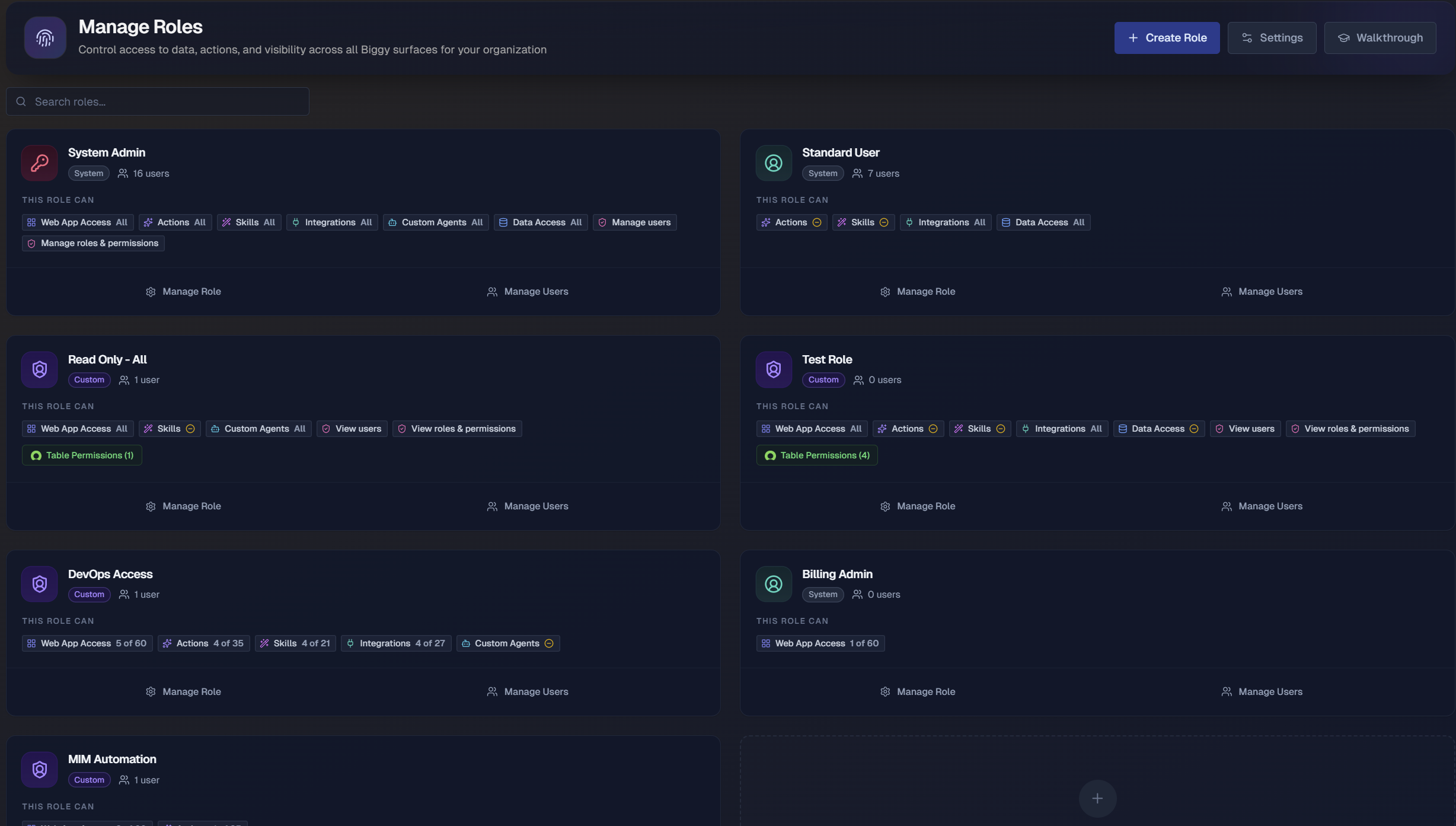
The Roles page lists every role in your organization as a card. Each card shows:
Role name and icon: The name of the role and its icon.
Type: A System badge for standard roles or a Custom badge for roles your organization created.
Assigned users: The number of users the role is assigned to.
This role can: A summary of the permission categories the role grants, with a count for each category. A category shows All when the role has full access to it, a count when the role has partial access, or a dash when the role grants nothing in that category.
Manage Role and Manage Users: Buttons to edit the role's permissions or change who the role is assigned to.
To find a specific role, enter a term in the Search roles field above the cards.
The Roles page also includes three buttons at the top:
Create Role: Opens the Create Role window to build a new custom role.
Settings: Opens the Settings window, where you can add a custom permissions message.
Walkthrough: Starts a guided tour of the Roles page.
Standard roles
BigPanda provides two standard (System) roles:
System Admin: Grants full access to all permission categories, including managing users and roles and permissions. The System Admin role cannot be edited. This role is future-inclusive, so any new pages, actions, skills, integrations, or data sources are granted automatically without editing the role.
Standard User: The role a user receives by default if they are not assigned a role when their account is created. It grants a limited set of permissions that your organization can edit.
Standard roles are marked with a System badge and can be assigned to any number of users. You can edit the Standard User role.
Create a role
A custom role grants access to specific pages, actions, skills, integrations, and data sources in BigPanda.
To create a role:
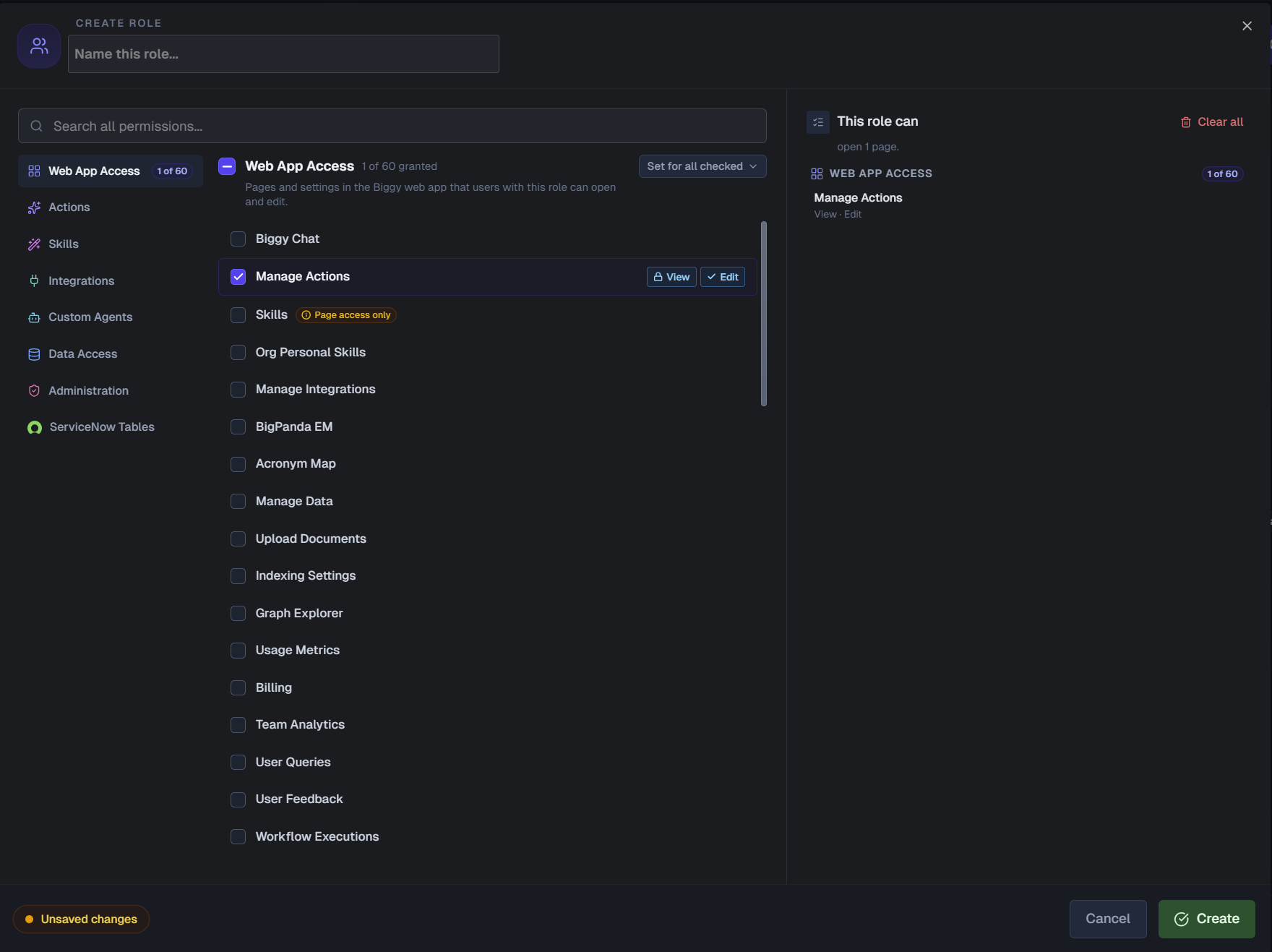
On the Roles page, click Create Role.
In the Create Role window, enter a descriptive name in the Name this role field.
Select a permission category from the list on the left. The available categories are Web App Access, Actions, Skills, Integrations, Custom Agents, Data Access, Administration, and ServiceNow Tables. See Permission categories for what each one controls.
Select the individual permissions you want to grant in that category. As you make selections, the This role can panel on the right updates to summarize what the role grants and how many items are selected in each category.
Repeat steps 3 and 4 for each category you want to include.
To find a specific permission across every category, enter a term in the Search all permissions field.
Click Create Role to save.
Preview before you save
The This role can panel summarizes the role in plain language, for example "use 1 action, access 1 skill, use 1 integration, and search 2 data sources." Use it to confirm the role grants what you intend before you save. Click Clear all to reset every selection.
Some permissions depend on others. For example, if a role can view or edit specific skills but cannot open the Skills page, BigPanda displays a message prompting you to grant the Skills page under Web App Access. Follow the prompt to grant the missing page so users can reach the permissions the role includes.
Permission categories
Permissions are grouped into categories. Each category controls a different type of access, and the access levels available depend on the category.
Web App Access: The pages and settings in the web app that users with this role can open and edit.
Actions: What Biggy can do for users with this role, such as searching knowledge, creating tickets, paging on-call, and running major incidents. Actions are granted with the Use access level and are organized into Core Actions, Actions, and Utility Actions sections. Actions that create or change data are marked with a Makes changes badge.
Skills: Per-skill access for users with this role. View and Edit govern managing specific skills on the Skills page, and Use governs which skills Biggy can apply in chat. This category also includes a Skill Lifecycle section for permissions such as submitting skills to the community library and approving promoted skills.
Integrations: The connected integrations, and the specific instances, that Biggy can use for users with this role. Integrations are granted with the Use access level. Use Manage table access to configure ServiceNow table permissions for the role.
Custom Agents: The custom agents that users with this role can view, edit, and run.
Data Access: The indexed data sources that Biggy can search for users with this role. Data sources are granted with the View access level.
Administration: What users with this role can manage, including other users and roles and their permissions. Grant Users to let the role add, remove, and assign roles to users, and grant Roles & permissions to let the role create and edit roles and their permissions.
ServiceNow Tables: The specific ServiceNow tables that Biggy can query for users with this role. See ServiceNow table permissions.
ServiceNow table permissions
In the ServiceNow Tables category, you can control which ServiceNow tables Biggy can query for users with a role. If no ServiceNow table permissions are set on any role, users have full access to all tables.
To add ServiceNow table permissions:
In the Create Role or Edit Role window, select ServiceNow Tables.
Click Add ServiceNow Table Permissions.
In the Access Mode section, select how the permission behaves:
Allow only these tables: Users with this role can query only the tables you list.
Deny these tables (allow all others): Users with this role cannot query the tables you list, but can query all others.
In the Tables section, select a Match Type of Exact, Starts With, Ends With, or Contains.
Enter the Table Name / Pattern, then click View to confirm the name or pattern matches an existing table.
To add more tables, click Add Table and repeat steps 4 and 5.
When a user is assigned more than one role, ServiceNow table permissions combine across those roles:
Allow-only: The user can access any table allowed by any of their roles.
Deny-only: Tables denied by the combined deny lists of all their roles are blocked.
Mixed: Allow rules override denials, so a table is denied only if it is not allowed by any role.
For example, if one role allows the incident and problem tables and another role allows the change_request table, the user can access all three. If one role denies change_request, the user can access all tables except change_request.
Manage users in a role
Adding a user to a role grants them every permission the role includes. You can add and remove users from a role at any time.
To manage the users assigned to a role:
On the Roles page, find the role and click Manage Users.
In the Assign Users window, review the two columns. The Available column lists users who are not assigned the role, and the Assigned column lists users who are.
To assign users, select one or more names in the Available column, then click the right arrow to move them to the Assigned column. You can also double-click a user to move them.
To unassign users, select one or more names in the Assigned column, then click the left arrow to move them back to Available.
Click Save Changes to apply your changes.
To work with a long list, enter a name or email address in the Search available or Search assigned field, or click Select all above either column to select every user in it.
Edit or delete a role
To edit a role, click Manage Role on the role's card. In the Edit Role window, change the role's name or permissions, then click Update. When a role is assigned to users, the window notes that your changes apply to all of them on save.
The System Admin role grants full access to every category and cannot be edited.
Add a permissions message
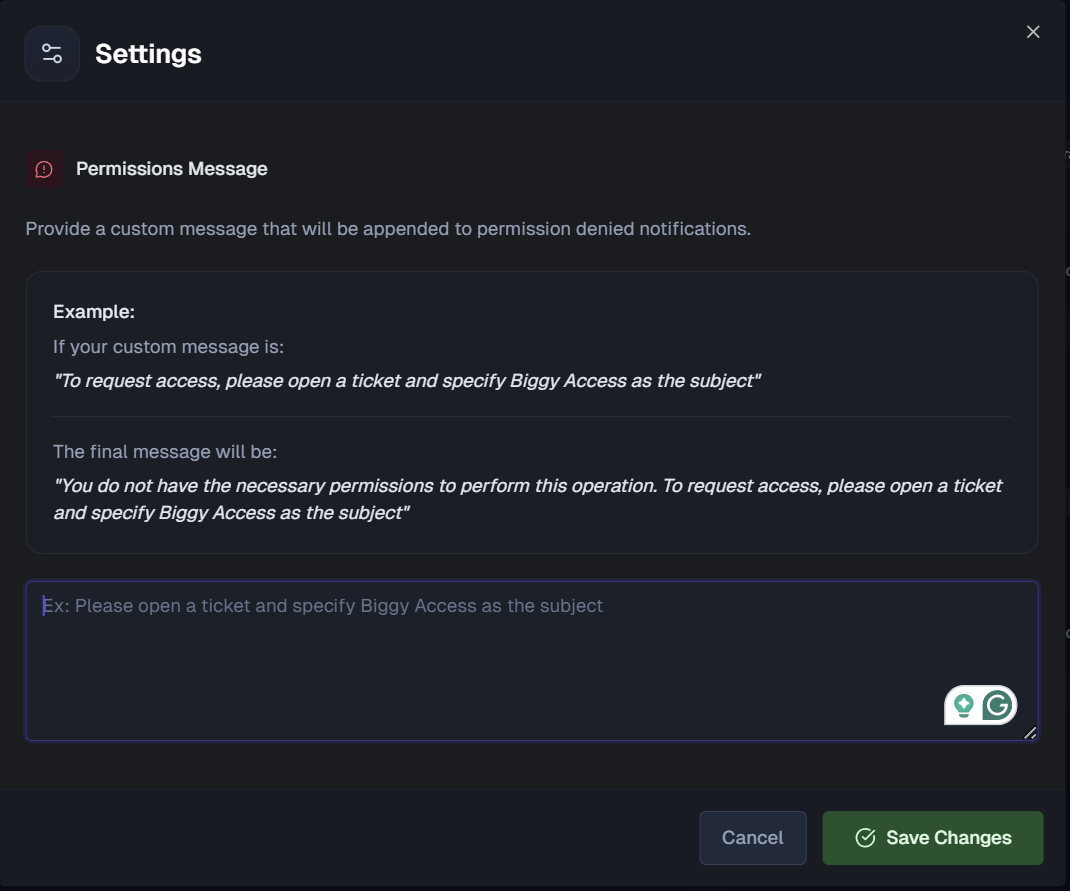
You can add a custom message that appears when a user tries to perform an operation they don't have permission for. Use it to tell users how to request the access they need, for example by opening a ticket.
To add a permissions message:
On the Roles page, click Settings.
In the Settings window, enter your message in the Permissions Message field.
Click Save Changes.
Every permission-denied notification begins with a standard message, and your custom text is appended to it. For example, if your custom message is "To request access, please open a ticket and specify Biggy Access as the subject," the full notification reads "You do not have the necessary permissions to perform this operation. To request access, please open a ticket and specify Biggy Access as the subject."
Next Steps
Learn about user management in BigPanda
Learn about managing your personal account
Find your way around the BigPanda Settings page