Adaptive Memory (IA)
Adaptive Memory lets you review and manage what Biggy has learned about your organization. It holds the durable facts and operational procedures gathered from conversations and investigations, and uses these facts as context to answer questions. Each item links back to its source.
Use Adaptive Memory to review what Biggy knows, correct outdated information, and define the conventions Biggy should follow.
Adaptive Memory is available in the web app at Manage > Knowledge & Data > Adaptive Memory.
Key features
Search facts, entities, and relationships, and filter the feed by relationship type.
Use the knowledge summary and Most connected entities panel to see where Biggy's knowledge is concentrated.
Review the operational procedures Biggy has learned, including successful approaches to follow and problems to avoid.
Set Response Preferences that Biggy follows across your organization or for a specific team.
Edit the wording of a fact or remove facts that are no longer accurate.
Adaptive Memory page
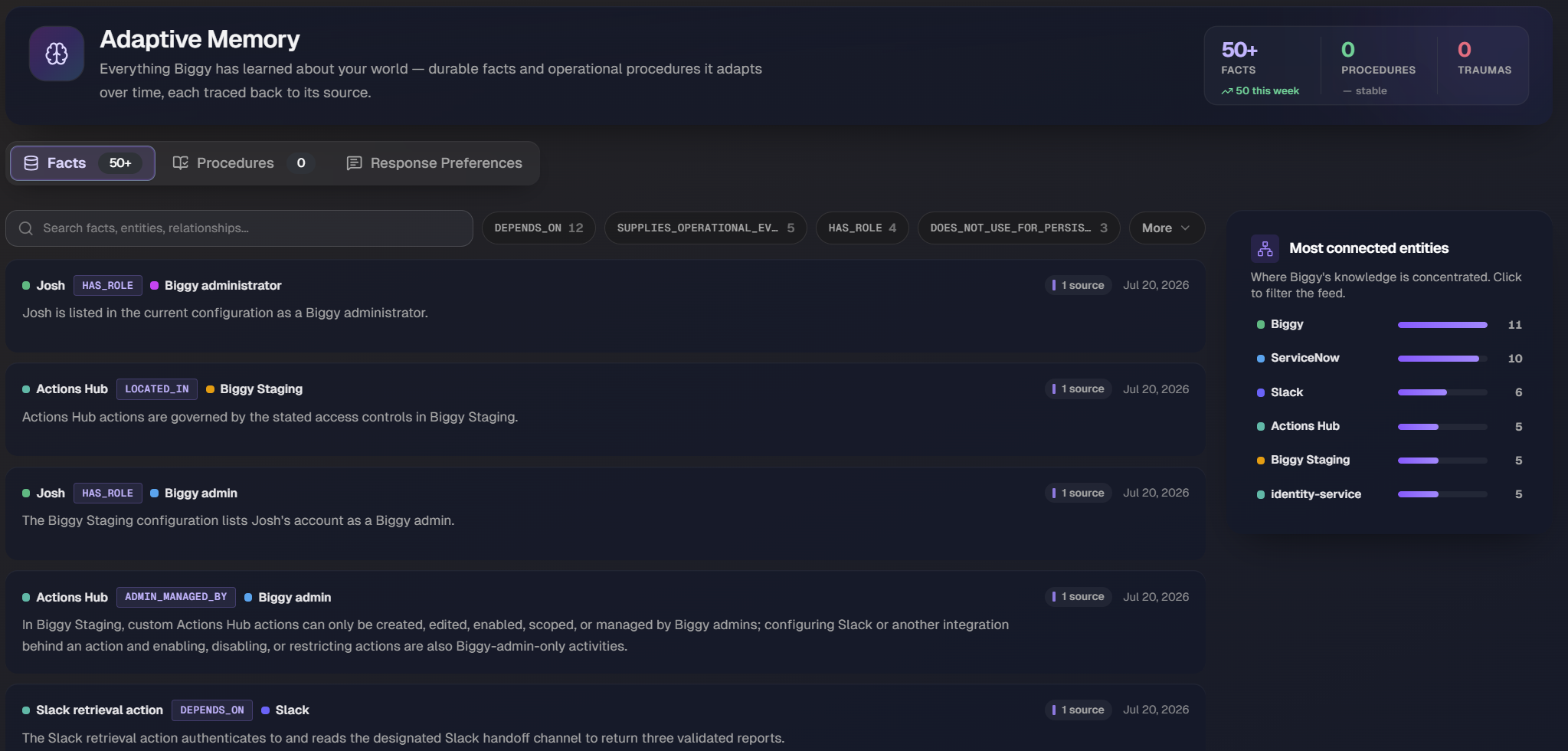
The Adaptive Memory page organizes Biggy's knowledge into three tabs: Facts, Procedures, and Response Preferences. Each tab shows the number of items it contains.
The Facts tab opens by default.
Facts
The Facts tab shows the durable facts Biggy has learned from conversations and investigations. Facts can include information such as service ownership, vocabulary, runbook locations, operational relationships, etc.
These facts represent Biggy's current understanding of your organization. Each fact appears on a card with the following information:
Relationship: The source entity, relationship type, and target entity, displayed as
Entity > RELATIONSHIP > Entity. For example,Create ServiceNow Incident > DEPENDS_ON > ServiceNow.Plain-language summary: A sentence that explains the relationship in context.
Supported by: The number of sources that support the fact.
Learned date: The date Biggy recorded the fact.
Current facts only
The feed shows only current facts. Superseded and retired facts are hidden, so the feed reflects Biggy's latest recorded understanding.
Search and filter facts
Use the search box at the top of the feed to search facts, entities, and relationships. As you search or apply filters, Biggy shows the number of matching facts, such as Showing 23 of 50+ loaded facts.
Below the search box, use the relationship-type filters to display a specific relationship, such as DEPENDS_ON or HAS_ROLE. Each filter shows the number of facts with that relationship type. Click More to view additional relationship types. Click Clear to remove all active filters and return to the full feed.
Facts load in batches. When additional facts are available, click Load more at the bottom of the feed to display and search older facts.
Filter from knowledge summary
To filter the feed by an entity, click the entity in the Most connected entities panel .
Knowledge summary
In the upper-right corner of the Facts tab, the knowledge summary shows how much Biggy has learned and where that knowledge is concentrated.
At the top of the page, counts summarize Biggy's memory in three categories:
Facts: Durable relationships that reflect Biggy's current understanding.
Procedures: Operational procedures Biggy has learned. See Procedures.
Traumas: Lessons from previous actions or outcomes that Biggy should avoid repeating.
A trend indicator shows recent change, including the number of facts added this week and whether the total is stable, increasing, or decreasing.
Below the counts, the Most connected entities list shows the entities that appear most frequently in facts and the number of facts associated with each entity. Click an entity to filter the feed to facts that include it.
Edit a fact
You can edit the plain-language summary of a fact without changing its entities or underlying relationship.
Editing rewrites the human-readable fact text only. The related entities and their relationships remain unchanged.
Locate the fact in the feed.
Select the edit icon for that fact. The Edit fact page opens.
Update the text in the Fact field. The related entities and relationship shown beneath the field, such as
Create ServiceNow Incident > ServiceNow (DEPENDS_ON), stay the same.Select Save to apply your change, or Cancel to discard it.
Remove a fact
To remove a fact that is no longer accurate, select the delete icon on the fact card.
Procedures
The Procedures tab shows operational procedures that Biggy has learned from previous conversations and investigations. Procedures describe approaches that worked in previous situations and problems that Biggy should avoid. Biggy can apply these lessons when similar situations occur in the future.
If Biggy has not yet captured any procedures, the tab displays No procedures learned yet. Procedures appear here automatically as Biggy learns them.
Response Preferences
The Response Preferences tab contains the standing conventions and response instructions Biggy follows for your organization. Use this tab to add organization-wide conventions and formatting instructions that Biggy should follow. For example:
Summarize incidents using our standard incident report format.
Don't automatically page the database team for SEV3 incidents.
Refer to the primary cluster as the edge cluster.
Biggy learns facts and procedures automatically. You add response preferences directly.
Be specific
Response preferences are instructions that your organization provides directly. Keep each preference short, specific, and actionable.
Turn Response Preferences on or off
In the upper-right corner of the Response Preferences tab, turn the Enable toggle on or off. When the toggle is off, Biggy does not apply your saved preferences.
Add a preference
Click Add preference. A new preference row appears.
In the text field, enter the instruction that Biggy should follow. For example, enter
Always include a Recommended Next Steps section in incident summaries.)From the scope menu, choose where the preference applies. Select Org-wide to apply the preference across your organization, or select a specific team to apply it to only that team's members.
Make sure the Active toggle is on so Biggy applies the preference.
Select Save.
To remove a preference, select the delete icon on its row.